Incoming student technology setup · 2026

Your laptop, ready for law school.

Connect to UConnect, install Acrobat Pro and Box Drive, test RedPrint, and set up UMail. Most steps work from home; finish the printer test on campus.

New University account?

If Box, Adobe, or an AI access request says you are not eligible, skip that step and try again after your student account finishes activating. Incoming students are already being added to RedPrint; no separate request is needed.

Before you sign in

Use the sign-in format each service expects

UMail, Adobe + ChatGPT Edu
uNID@umail.utah.eduUse when a Microsoft, Adobe, or ChatGPT page asks for email
UConnect, UBox + RedPrint
uNIDUse your bare uNID on University sign-in pages
Box Drive
uNID@utah.eduUse if the installed Box Drive app asks for email
Gemini
uNID@gcloud.utah.eduUse for the University Google account

Computer setup

Set up your computer

0 of 4 complete
01

On campus · 5-10 min

Connect to UConnect

Install the University Wi-Fi profile, then test the connection.

  1. On campus, choose UGuest, open a browser, request a text-message access code, and enter the code.
  2. Open onboard.utah.edu and accept the terms.
  3. Choose Students, Faculty, Staff → Laptops, Phones, iPads → UConnect.
  4. Select Sign In, enter your uNID and University password, and approve Duo.
  5. Open the downloaded .mobileconfig file. If macOS says Profile Downloaded, open System Settings → General → Device Management.
  6. Under Downloaded, open the University of Utah or UConnect profile, select Install, and enter your Mac login password if asked.
  7. Open the Wi-Fi menu, choose UConnect, and load utah.edu to confirm the connection works.
02

Can do anywhere · 15-25 min

Request and install Acrobat Pro

Request a University license, install Creative Cloud, then install Acrobat.

  1. Open the University Adobe catalog and sign in with your uNID, University password, and Duo.
  2. Select Request Adobe CC All Apps Pro License.
  3. Choose Acrobat Pro. For the justification, enter a short reason such as “PDF editing for law school coursework.”
  4. Select Activate. The license may take up to 10 minutes to process, and Adobe will send a confirmation email.
  5. When Adobe asks for an email address, enter uNID@umail.utah.edu, then complete University sign-in and Duo.
  6. On the Creative Cloud webpage, select your account icon → Install Creative Cloud Desktop.
  7. Open the downloaded .dmg file and complete the installation.
  8. Open Creative Cloud Desktop, find Acrobat under Apps, and select Install.
  9. Open a PDF in Acrobat and confirm that Edit appears among the available tools.
03

Can do anywhere · 10-15 min

Activate UBox and add Box Drive

Activate UBox in a browser before installing Box Drive.

  1. Open box.utah.edu and select Log in to UBox.
  2. Enter your bare uNID and University password, then approve Duo if prompted. Your UBox account is created during this first login.
  3. Wait for the UBox files page to open, then use the Box Drive installer link below.
  4. Open the downloaded installer, choose Install for all users of this computer, and keep the default install location.
  5. When Box Drive opens, enter uNID@utah.edu if it asks for an email address, then complete University sign-in in your browser.
  6. Open Finder and confirm Box appears under Locations.
  7. Copy or drag a small existing file into the Box folder, then confirm the same file appears when you return to box.utah.edu.
04

On campus · 15-20 min

Install and test RedPrint

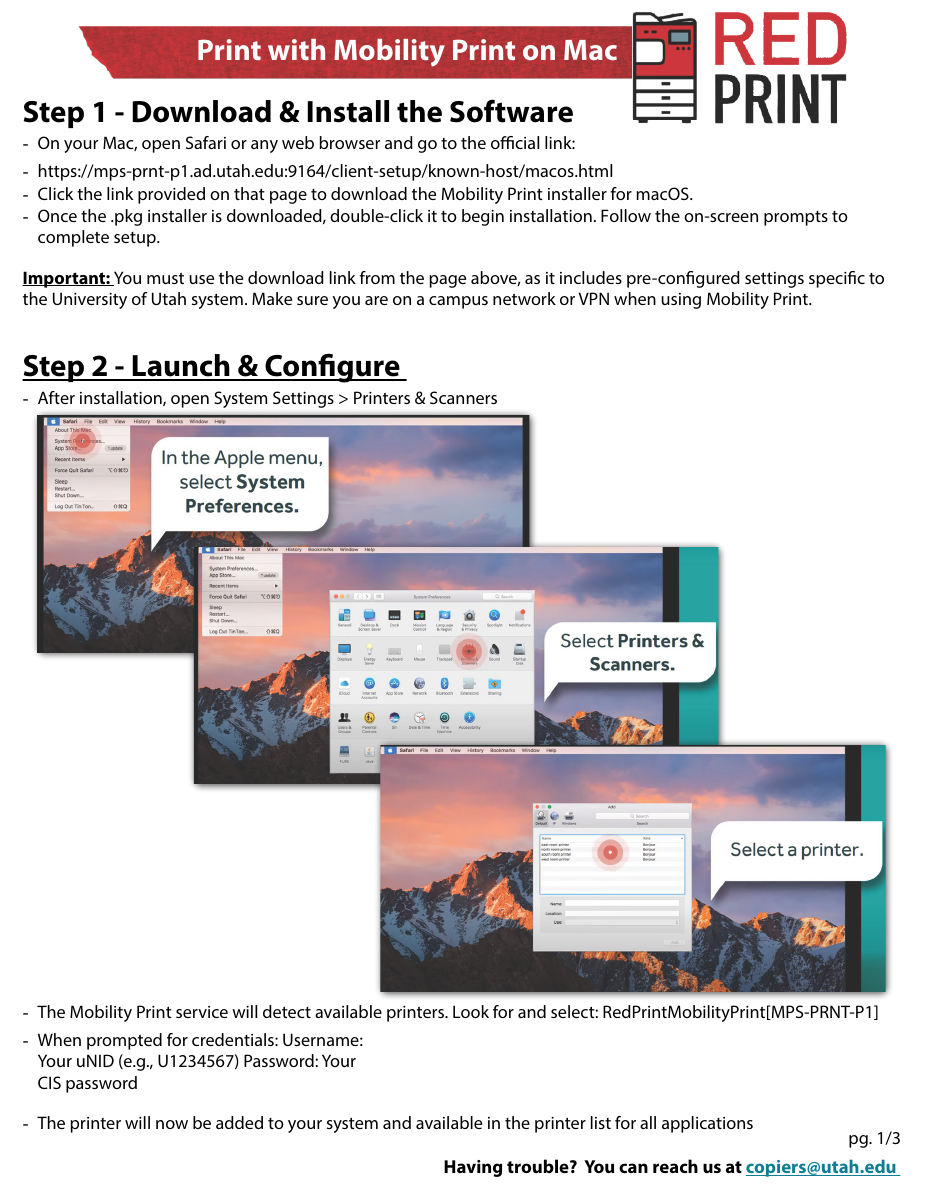
Connect to UConnect or the University VPN before opening the installer.

  1. Connect to UConnect or the University VPN, then open the Mac installer link below.
  2. Download and open the .pkg file. Follow the installer prompts and enter your Mac administrator password if asked.
  3. Open System Settings → Printers & Scanners and select RedPrintMobilityPrint[MPS-PRNT-P1].
  4. When asked for credentials, enter your bare uNID and University password.
  5. Check your UCard balance and add funds if needed at myucardonline.utah.edu.
  6. Open a one-page PDF, choose File → Print, select RedPrintMobilityPrint[MPS-PRNT-P1], and use Letter (8.5 × 11) or 11 × 17 paper.
  7. If the job pauses, open the printer queue, select the lock-with-arrow icon, check Remember my credentials, enter your uNID and password, and resume the job.
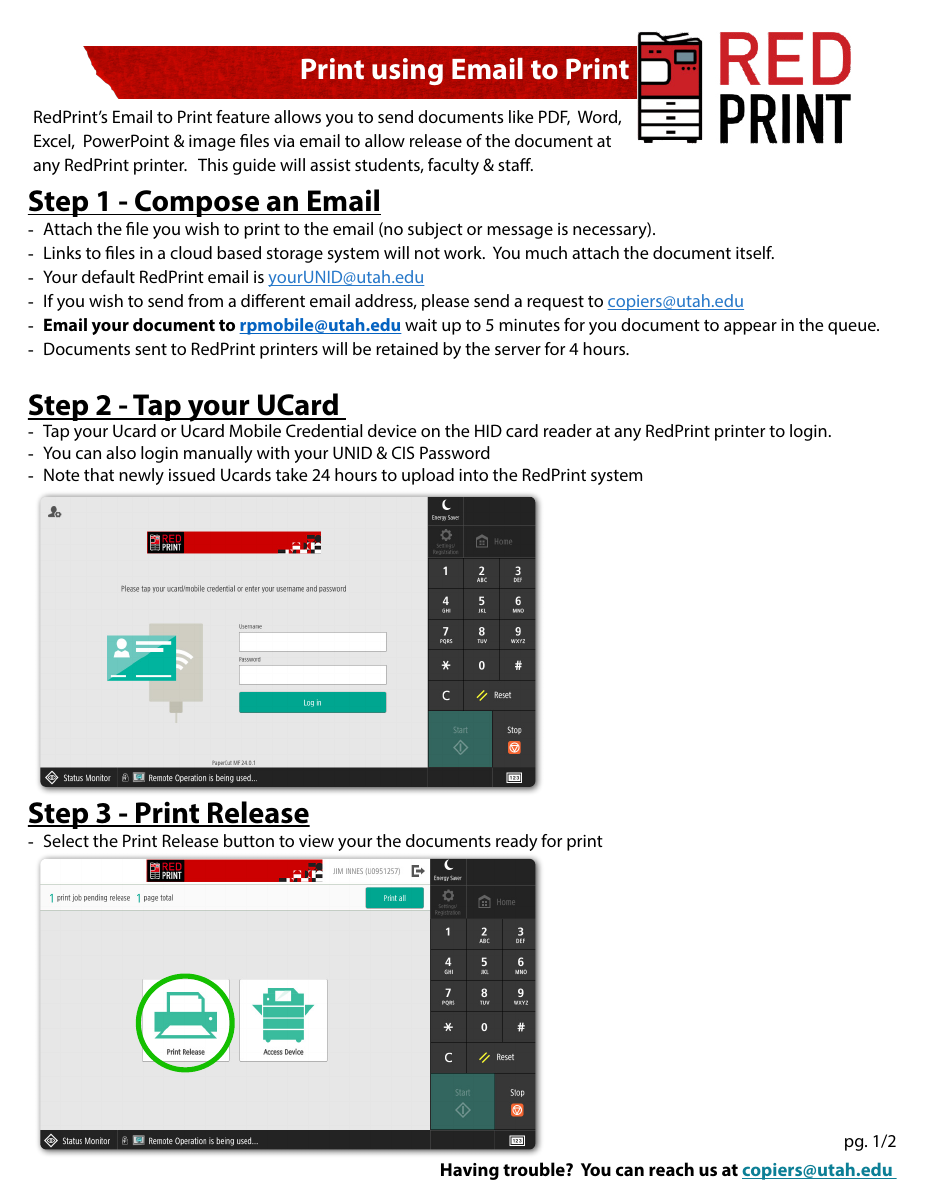
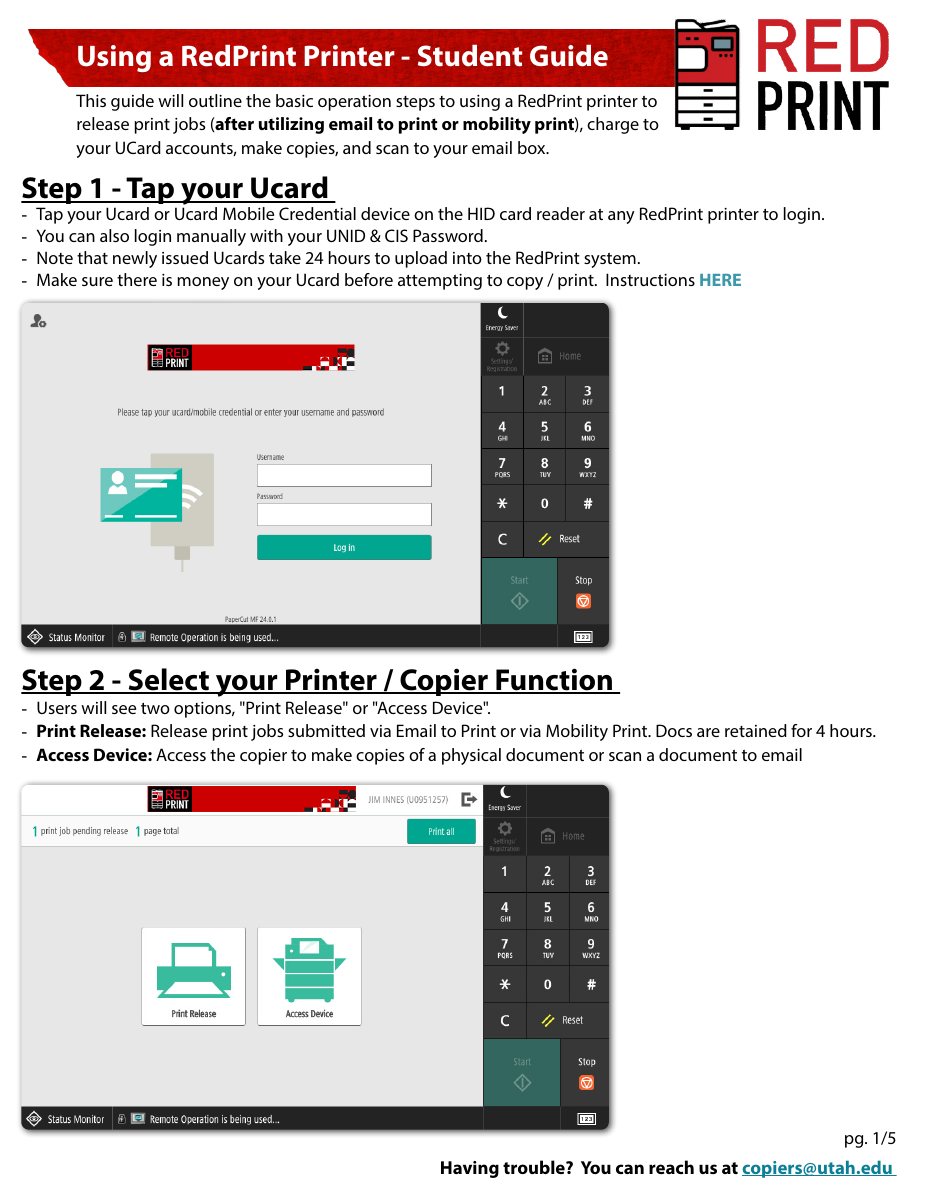
  8. Within four hours, go to a RedPrint copier and tap your UCard or UCard Mobile Credential. You can also sign in manually with your uNID and University password.
  9. Choose Print Release, select the document, choose My Personal Account, print, and tap your UCard again to log out.
First page of the University RedPrint guide for Mac
Official University RedPrint guideMac installation and printer setup

Phone + tablet

Set up UMail and mobile printing

Outlook uses the same setup on iPhone, iPad, and Android. Email-to-Print is the quickest way to send a document from a mobile device.

01iPhone, iPad + Android

Add UMail to Outlook

  1. Install Microsoft Outlook from the App Store or Google Play.
  2. Open Outlook and choose Add Account. If Outlook already has another account, open the account menu and tap the blue + button.
  3. Enter uNID@umail.utah.edu, then tap Add Account or Continue.
  4. On the University sign-in page, enter your bare uNID if requested, enter your University password, and complete Duo. Approve the requested permissions if prompted.
  5. Open your inbox and send a message to your own UMail address. Confirm that it appears in both Sent and Inbox.
Prefer Apple Mail on iPhone or iPad?

Open Settings → Apps → Mail → Mail Accounts → Add Account → Microsoft Exchange. Enter uNID@umail.utah.edu, tap Next, choose Sign In, complete University sign-in and Duo, select what you want to sync, and tap Save.

02Email-to-Print

Email a document to RedPrint

  1. Open UMail and start a new message.
  2. Attach the actual PDF, Word, Excel, PowerPoint, or image file. A Box, OneDrive, or Google Drive link will not print.
  3. Address the message to rpmobile@utah.edu. The subject and message can be blank.
  4. Send the message and allow up to five minutes for the job to appear.
  5. At any RedPrint copier, tap your UCard or UCard Mobile Credential. You may also sign in manually with your uNID and University password.
  6. Tap Print Release, then tap the arrow beside the document.
  7. Choose copies, one- or two-sided printing, and color or black and white.
  8. Select My Personal Account, review the cost, then tap Print. The charge is deducted from your UCard balance.
  9. Tap your UCard again or use the logout icon before leaving.

The job remains available for four hours. Email-to-Print cannot use 11 × 17 paper or add staples; use Mobility Print for those jobs.

Need 11 × 17 paper or stapling?

Use Mobility Print

Connect your device to UConnect or the University VPN before installing or printing. Start from the University setup link so the app receives the correct RedPrint configuration.

iPhone or iPad

  1. Open the iPhone and iPad setup link in Safari.
  2. Install PaperCut Mobility Print and allow the requested local-network and printing permissions.
  3. Open the document and tap Share → Print.
  4. Select RedPrintMobilityPrint[MPS-PRNT-P1], choose Letter or 11 × 17 (not A4), and tap Print.
  5. Release the job at a RedPrint copier using the steps above.
Open iPhone + iPad setup ↗

Android

  1. Open the Android setup link and install PaperCut Mobility Print.
  2. Open the app, allow the requested permissions, and select RedPrintMobilityPrint[MPS-PRNT-P1].
  3. Enter your bare uNID and University password if asked.
  4. Open the document, choose Share or Menu → Print, select the same printer, choose Letter or 11 × 17 (not A4), and tap Print.
  5. Release the job at a RedPrint copier using the steps above.
Open Android setup ↗

Optional University tools

Set up ChatGPT Edu and Gemini

Each tool requires a separate access request.

AI 01OpenAI

ChatGPT Edu

  1. Request ChatGPT Edu access in the University IT Service Catalog.
  2. Check UMail for an invitation from OpenAI. It should arrive within 24 hours; check junk mail if it does not.
  3. Accept the invitation and create the account with uNID@umail.utah.edu.
  4. At chatgpt.com, choose “University of Utah ChatGPT Edu,” then sign in with your uNID, University password, and Duo.
  5. Confirm “University of Utah ChatGPT Edu” appears by your profile.
AI 02Google

Gemini

  1. Submit the University AI Access Request and accept the Acceptable Use Policy.
  2. Go to gemini.google.com and select Sign in.
  3. Enter uNID@gcloud.utah.edu.
  4. At University sign-in, enter your uNID and University password, then approve Duo.
  5. Confirm the account menu shows uNID@gcloud.utah.edu before entering a prompt.

Before using AI for coursework: Follow the rule for each assignment, verify every output, and disclose or cite AI use when required. ChatGPT Edu is approved only for public data; never enter client or other nonpublic information. Review the student AI rules ↗

Help

If a setup step fails

Take a screenshot of the full error message and note the app or website, the step that failed, and when it happened.

University sign-in

Test the web version

Open the same service in a browser. If the browser also fails, contact Campus IT. If the browser works but the installed app fails, bring the app error to Law IT.

Mobility Print

Printer does not appear

Connect to UConnect or the University VPN, then reopen the University setup link. Choose RedPrintMobilityPrint[MPS-PRNT-P1] and use Letter or 11 × 17 paper.

Email-to-Print

Job does not appear

Wait five minutes. Confirm that the file was attached, the message went to rpmobile@utah.edu, and the job is less than four hours old. If a new UCard is not recognized, sign in manually; new cards may take 24 hours to appear.

Before Law IT drop-in

Bring your charged laptop, your Duo phone, and a screenshot of the full error.

Be ready to enter the laptop administrator password yourself. Check the orientation schedule for the current time and location.

Reference

Official University setup guides